

No, Instagram offers no single switch that removes an automatic AI info label from a live story. You can switch off a label you added yourself before you post the story. For an automatic label, delete the story, clean the source file, and repost the clean version.
Instagram serves more than two billion monthly users, so small labels attract wide attention fast. Meanwhile, AI editing tools often embed hidden signals during a simple retouch. Therefore, a real photo can gain a label even without full AI generation.
Key Takeaways:
- No live switch: Instagram provides no button that strips an automatic label from a live story.
- Self-added labels: You can turn off a self-added label before you share the story.
- Delete first: Delete a labelled story before you clean and repost the file.
- Clean source: Clean the original file, not a copy downloaded from Instagram.
- False positives: Minor AI retouching can trigger a label on a real photo.
- Keep honest labels: Keep the label when AI truly created realistic content.
Why Instagram Shows AI Info on Stories
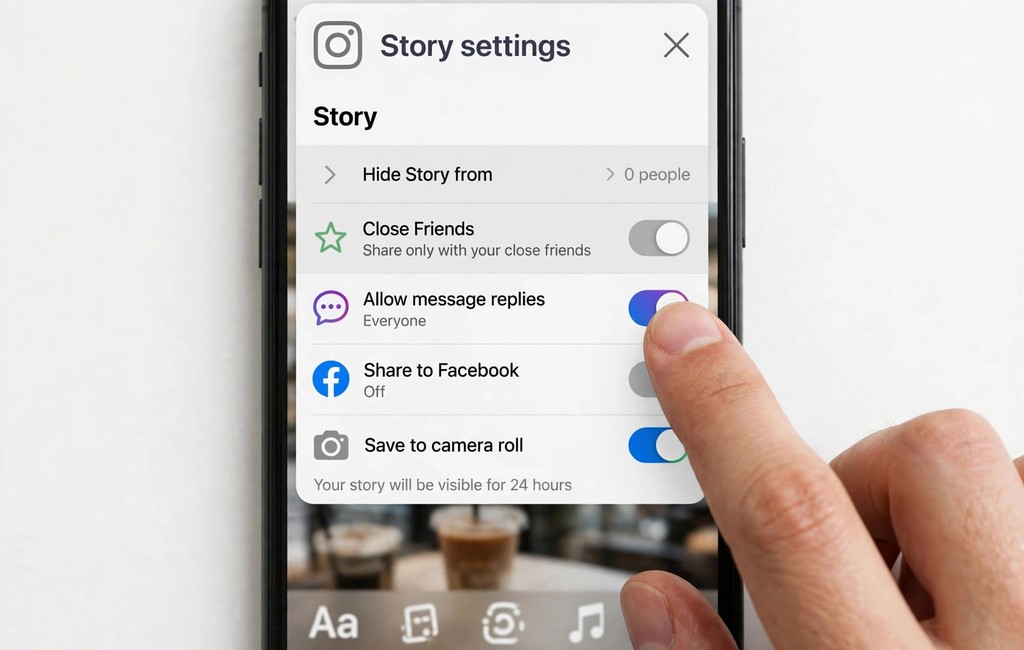
Instagram reads hidden signals in your file when you upload a story. First, editing apps can write AI markers into photo metadata during export. Next, industry signals such as C2PA credentials can tell Instagram about AI edits. Finally, Meta detection tools can also flag content from known AI signals.
A label does not prove that AI created the whole image. For example, AI denoise, generative fill, or background removal can trigger the same warning. Meanwhile, a fully generated image can carry a stronger visible label. Therefore, check the file history before you assume the label is wrong.
Content made with Meta AI tools carries its own visible marker. Also, photorealistic AI video or audio needs clear disclosure under Meta rules. However, minor edits may show the information only inside the post menu. So, tap the label or menu to see the exact wording first.
Stories disappear after 24 hours, but highlights can preserve a labelled story longer. Therefore, check highlights too when you clean up a story. Finally, remove the story from highlights before you delete the original file.
Turn Off a Label You Added Yourself
Open your story draft and choose the photo or video first. Then tap the options menu and open the Label AI control. Next, switch off Add AI label when the content is truly your own work.
This step works only for a label you added yourself, not for automatic detection. Still, understanding facebook vs instagram helps you spot new labelling changes early.
If the toggle is missing, update Instagram and restart the app. Also, check the story editor again after the update finishes. Finally, do not repost the same file if Instagram already flagged it automatically.
Close friends stories follow the same labelling rules as public stories. Also, the label can appear for viewers even when you cannot see it. Therefore, ask a trusted viewer to check the story after posting.
Delete and Repost With a Clean File
Delete the labelled story before you try any other fix. First, open your profile and view the active story. Next, tap More and choose Delete to remove it fully. Then save your caption, stickers, and links separately for the repost.
Use the original camera file for the new upload, not an Instagram download. Instagram downloads can carry fresh signals or lower quality after compression. Meanwhile, provenance matters beyond Instagram, and blockchain can help facebook verify content origins in other contexts.
Upload the clean file as a brand new story. After that, view the story and tap its menu for any label. If no label appears, your file passed the first check. However, watch the story again later, since detection can update.
Keep the deleted story link list safe until the repost succeeds. Also, re-add polls, questions, and music after the new upload. Finally, confirm every sticker still works before you finish the story.
Clean AI Metadata Before You Upload Again
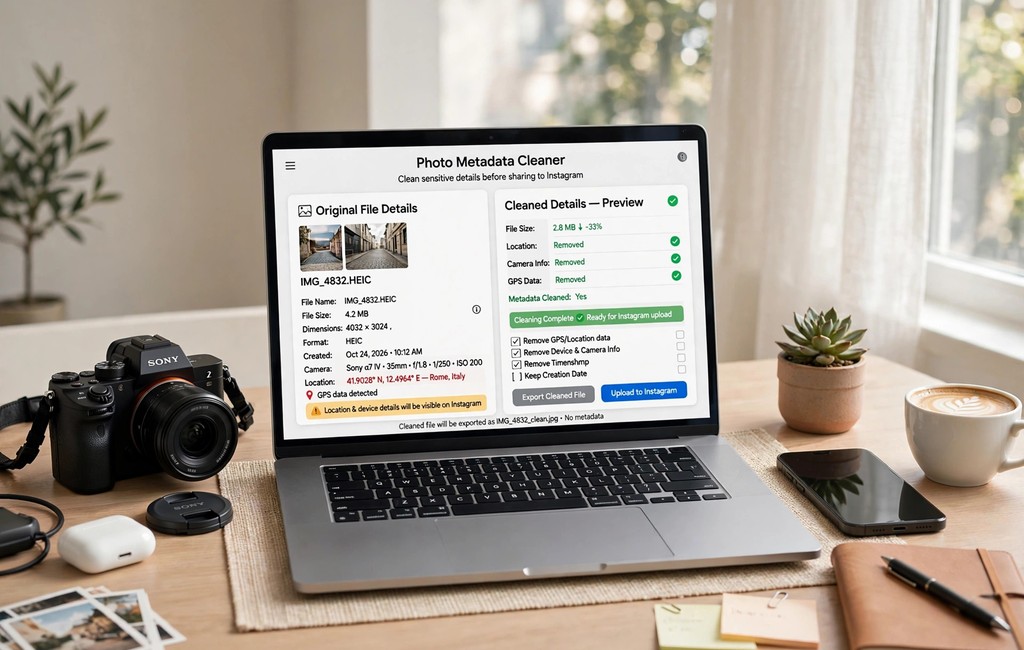
Open the original file in a trusted metadata tool first. Next, inspect fields for AI source type, creator tool, or C2PA credentials. Then remove only the incorrect AI markers while you keep the colour profile intact. Finally, save the result as a new file with a new name.
Some editors rewrite metadata during the final export, so clean the file last. Also, test the cleaned copy on a private story or close friends list first. Next, check your phone and find hidden apps that may edit photos automatically.
A screenshot can strip metadata, but it also lowers image quality sharply. Moreover, screenshots cannot remove pixel watermarks such as SynthID. Therefore, treat screenshots as a last resort, not a clean workflow. Instead, export a fresh copy from the original camera file.
Check video stories separately, since covers and clips carry separate files. Also, clean the cover image even when the video looks clean. Finally, re-encode video only with a trusted tool that preserves quality.
Avoid the Label on Future Stories

Keep original camera files in a separate folder for every shoot. First, note which app and feature touched each photo. Next, avoid generative fill or AI expansion on photos you want labelled as real. Then export with Content Credentials switched off when your editor allows it.
- Originals: Save untouched originals before you apply any AI edit.
- Exports: Turn off Content Credentials in export settings when possible.
- Testing: Test one story first before you publish a full series.
- Disclosure: Label truly AI-generated realistic content honestly every time.
Small retouches still matter, so track them in your workflow notes. Also, reuse a proven export preset for real photos across projects. Finally, review new Instagram labelling updates before a major campaign launch.
Train your team on the same export rules for consistent results. Also, create a checklist for shoots, edits, exports, and uploads. Finally, review the checklist monthly as Instagram changes its detection tools.
What to Do When the Label Looks Wrong
Gather proof before you contact Instagram support. First, keep the original file, export settings, and editing history together. Next, note the exact label wording and the story date. Then explain clearly why the label misrepresents your real photo.
Open Instagram Help, choose Report a Problem, and describe the issue briefly. Also, attach screenshots that show the original file and its history. However, expect no instant removal, since reviews take time and vary by case. Meanwhile, keep the clean repost live if the original label was wrong.
Do not strip a correct label just to hide AI generation. Realistic AI content needs transparency, especially when viewers might trust it as real. Instead, add context in your caption and keep the disclosure visible. Honest labelling builds trust faster than a clean-looking story.
A wrong label does not always mean a penalty or reach loss. Also, Meta has not confirmed a general reach penalty for correct labels alone. Therefore, focus on accurate files and honest disclosure, not label panic.
Frequently Asked Questions
Can you remove AI info from a live Instagram story?
No, delete the story and repost a clean file instead.
Why did Instagram label my real photo as AI?
AI editing tools can embed markers during retouching, export, or noise reduction.
Can I turn off the AI label in Instagram settings?
No, Instagram provides no account switch for automatic AI labels.
Does a screenshot remove the AI info label?
A screenshot removes metadata but lowers quality and keeps pixel watermarks.
Should I keep the label on truly AI-generated content?
Yes, keep the label and add clear context for viewers.
Conclusion
Start by checking whether you added the label yourself. Then delete any automatic label story and rebuild it from a clean original. Finally, test the repost before you share the next story in a series.
Clean one story file today and repost it with confidence. After that, save your proven export preset for future stories. Share this guide with a creator who faces the same label problem.