
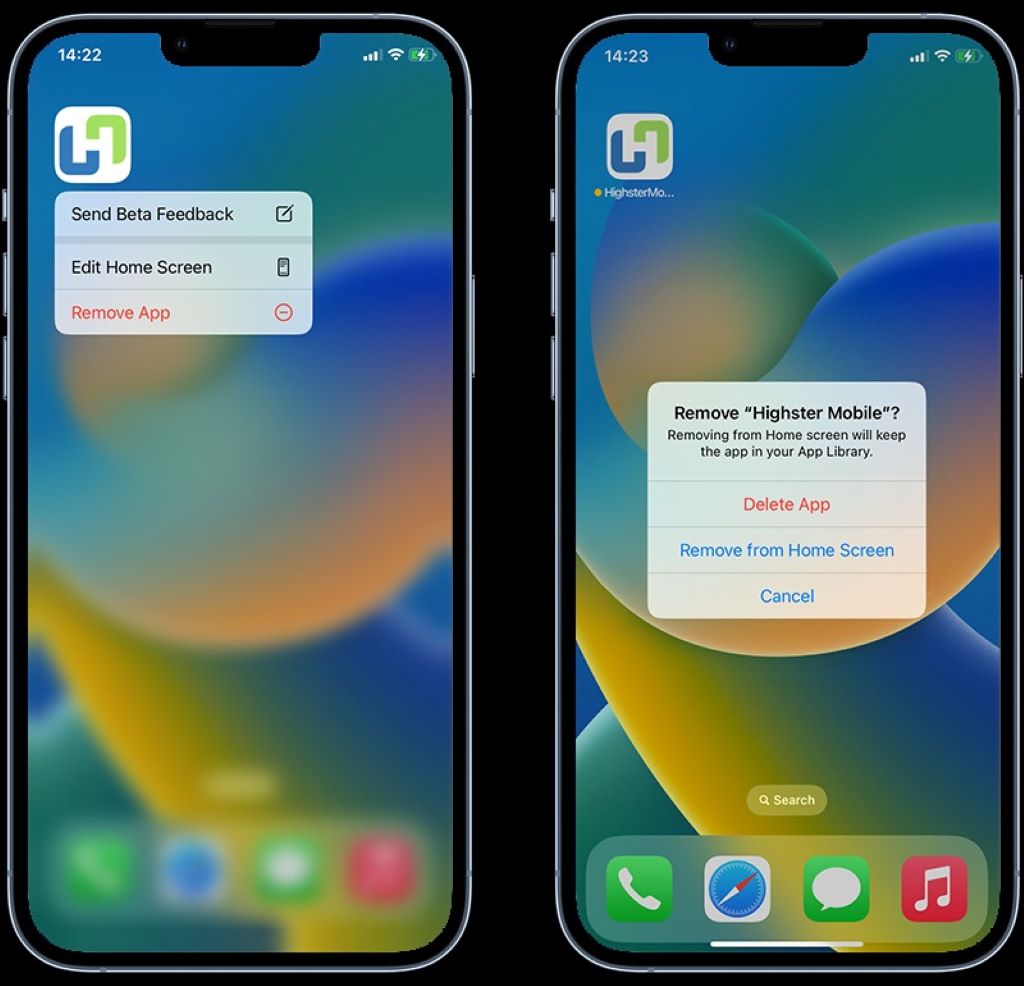
While offering unparalleled convenience, the digital world has also become a breeding ground for malicious software, or malware. These insidious apps can infiltrate your device, steal personal data, or even take control of your phone. While both Android and iOS platforms have robust security measures, it’s crucial to understand how to identify and remove these hidden threats. This article will guide you through the process of uninstalling malware on both Android and iOS devices, including how to uninstall hidden malware apps.
How to Uninstall Hidden Malware Apps: Understanding the Threat
Before diving into removal methods, it’s essential to grasp the nature of malware. These apps can be disguised as legitimate applications, often found in third-party app stores or through deceptive downloads. They can exhibit various behaviors, including:
- Data theft: Stealing personal information, banking details, or passwords.
- Device takeover: Controlling your phone remotely for nefarious purposes.
- Adware: Displaying intrusive and unwanted advertisements.
- Ransomware: Locking your device until a ransom is paid.
How to Uninstall Hidden Malware Apps: Signs of Malware Infection
While not definitive, certain indicators can suggest a malware infestation:
- Unexpected behavior: Your phone is acting strangely, freezing, overheating, or draining the battery rapidly.
- Mysterious apps: Unknown applications appearing on your device.
- Excessive data usage: Unusual spikes in data consumption.
- Pop-up ads: Frequent and intrusive advertisements.
- Slow performance: Device sluggishness or unresponsive apps.
Uninstalling Malware on Android
Android, with its open ecosystem, can be more susceptible to malware attacks. However, the platform also offers several tools to combat these threats.
Step-by-Step Guide:
- Enter Safe Mode: This temporarily disables third-party apps, including malware. The method to enter Safe Mode varies by device, but it typically involves pressing and holding the power button.
- Identify Suspicious Apps: In Safe Mode, carefully examine your app list. Look for unfamiliar or suspiciously named apps.
- Remove Administrator Privileges: Some malware apps might have administrator privileges, preventing their removal. Go to “Settings” > “Security” > “Device Administrators” and disable any suspicious apps.
- Uninstall Suspicious Apps: Navigate to “Settings” > “Apps” and uninstall the identified malicious apps.
- Reset Your Device (Extreme Measure): If the issue persists, consider a factory reset as a last resort. However, this will erase all data on your phone, so back up important information beforehand. If you suspect a hidden app might cause the problem, you can also explore how to uninstall a hidden app using a step-by-step guide like the one found here: https://wayofthedogg.com/how-to-uninstall-a-hidden-app-a-step-by-step-guide/.
Uninstalling Malware on iOS
While less common, iOS devices are not immune to malware. Apple’s App Store is generally secure, but vulnerabilities can still arise.
Step-by-Step Guide:
- Update iOS: Ensure your device is running the latest iOS version. Apple regularly releases updates with security patches.
- Review App Permissions: Check the permissions granted to apps. If an app requests excessive permissions, it might be suspicious.
- Delete Suspicious Apps: If you identify a problematic app, delete it from your device.
- Restore from Backup: If malware is deeply rooted, restoring your device from a clean backup can be effective. However, ensure the backup itself is not infected.
Webroot vs. Geek Squad: Unraveling Your Tech Protection Needs
How to Uninstall Hidden Malware Apps: Prevention is Key
The best defense against malware is prevention. Here are some essential tips:
- Be cautious with app downloads: Only install apps from trusted sources like the official app store.
- Enable two-factor authentication: This adds an extra layer of security to your accounts.
- Keep software updated: Regularly update your operating system and apps to benefit from security patches.
- Use antivirus software: Consider using a reputable antivirus app for added protection.
- Be mindful of public Wi-Fi: Avoid using public Wi-Fi for sensitive activities like online banking.
Related: 4 Best Book-Writing Apps for Android
By following these guidelines and staying vigilant, you can significantly reduce the risk of malware infection and protect your device and personal information. Remember, if you encounter persistent issues, consider seeking professional help from cybersecurity experts.
Disclaimer: While this article provides general information, specific removal steps may vary depending on the device, operating system version, and type of malware. Always exercise caution when dealing with potential threats.